

Understanding Snipaste: The Ultimate Screenshot Tool
In a world where digital communication has become essential, tools that enhance our productivity are in high demand. Snipaste emerges as a powerful solution for anyone who requires efficient screenshot management and annotation capabilities. Unlike traditional screenshot tools, Snipaste not only captures images but also allows users to annotate and manage those images seamlessly. It encapsulates advanced technology with user-friendly features, making it a favorite among professionals in various industries. As we delve deeper into Snipaste, we’ll explore its standout features, benefits, and how it can transform your workflow. If you’re looking for comprehensive insights on snipaste, you’re in the right place.
What Makes Snipaste Stand Out?
Snipaste distinguishes itself with its innovative approach to screenshot management. Unlike other tools that merely capture images, Snipaste incorporates functionalities that enhance the usability of screenshots in professional environments. Key features such as smart UI element detection, offline OCR (Optical Character Recognition), and robust annotation tools elevate Snipaste above its competitors. Its versatility allows it to cater to creative professionals, educators, and developers alike, making it a cross-industry essential.
Core Features Overview
- Smart UI Element Detection: Automatically identifies and highlights user interface elements for easier capturing.
- Offline OCR: Extracts text from images without needing an internet connection, safeguarding your privacy.
- Multi-Screen and HiDPI Support: Seamlessly captures from multiple displays, ensuring no detail is missed, even on high-resolution screens.
- Rich Annotation Tools: Includes shapes, text, and freehand drawing options to enhance communication.
Benefits of Using Snipaste for Professionals
For professionals, efficiency is crucial. Snipaste enhances productivity through its quick-access features, allowing users to capture and annotate screenshots with ease. This capability is especially beneficial for designers who require precise color picking and developers who need to document workflows. By integrating Snipaste into daily operations, teams experience improved collaboration and communication, minimizing misunderstandings and enhancing project development.
Exploring Snipaste’s Advanced Functions
Smart UI Element Detection Explained
The smart UI element detection feature is revolutionary. It allows Snipaste to automatically recognize various interface elements on the screen, such as buttons and text fields, which can be particularly useful during software development or UI/UX design. This capability enhances efficiency by reducing the time spent on selecting specific areas for screenshots.
Using Offline OCR for Privacy and Accuracy
Privacy concerns are paramount in today’s digital environment. Snipaste’s offline OCR feature ensures that sensitive information remains secure while allowing users to extract text from images with high accuracy. This is particularly useful for professionals handling confidential documents or proprietary information, enabling them to copy and edit text without exposing it to online threats.
Multi-Screen and HiDPI Support Features
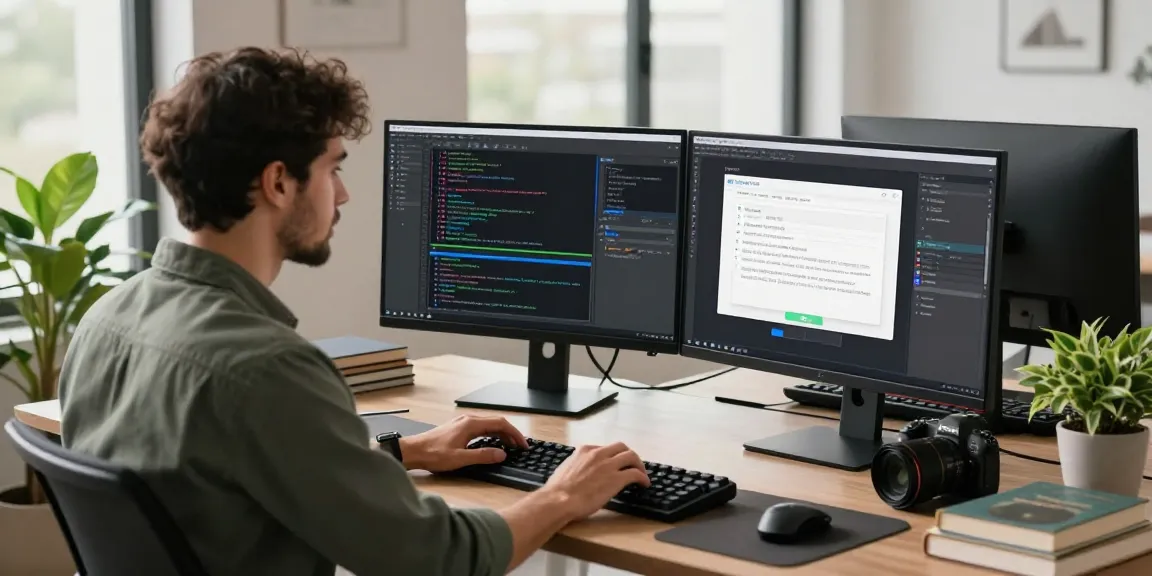
In an era where many professionals utilize multi-monitor setups, Snipaste offers seamless multi-screen support. Users can easily capture content from different displays without any hassle. The HiDPI support further ensures that images captured on high-resolution screens retain their clarity and detail, which is essential for visual designers and content creators.
Real-World Applications of Snipaste
Case Studies: Snipaste in Design Workflows
Many designers have integrated Snipaste into their workflows to streamline design processes. In one case study, a graphic design team reported a 30% reduction in time spent on annotations and feedback cycles after implementing Snipaste in their collaboration tools. This efficiency allowed them to focus more on creativity rather than logistics, ultimately boosting productivity and project turnaround times.
Enhancing Team Collaboration with Snipaste
Snipaste’s collaborative features allow teams to share annotated screenshots effortlessly. By utilizing Snipaste to create visual feedback, team members can provide clear, concise comments directly on the images, reducing the back-and-forth communication often seen in project management. This feature has proven essential in agile work environments, where quick iterations and feedback are necessary for success.
Snipaste for Educational Purposes: A Teacher’s Perspective
Educators have also adopted Snipaste to enhance teaching and learning experiences. By capturing important lessons or examples and annotating them, teachers can provide students with clear, visual aids. Feedback from teachers highlights the tool’s ability to make complex subjects more accessible through visual explanations, thus improving student engagement and understanding.
Tips and Best Practices for Maximizing Snipaste
Creating Efficient Annotation Workflows
To get the most out of Snipaste’s annotation tools, establish a standard workflow for your team. Using consistent colors, shapes, and text styles will create a coherent set of visual aids that help maintain clarity across all communications.
Customization Options for Speed and Efficiency
Snipaste offers various customization options, including shortcut key settings which can significantly speed up the screenshot process. Users should take the time to set these shortcuts to match their workflow preferences, allowing for quicker and more efficient use of the software during busy working hours.
Integrating Snipaste with Other Tools
For those who use multiple tools, integrating Snipaste with project management and design software can create a seamless workflow. This integration ensures that all screenshot-related tasks are centralized, reducing the chances of losing important edits or annotations during the project lifecycle.
Future Trends in Screenshot Technology
AI Integration and What It Means for Snipaste
As technology continues to advance, the integration of AI within screenshot software is becoming a reality. Snipaste aims to harness AI capabilities to enhance its functionalities further. Future updates may include automatic tagging of screenshots or smart suggestions for annotations based on the context of previous work.
Emerging Features to Look Forward To in 2026
In 2026, users can expect Snipaste to offer features such as collaborative cloud storage for annotations and AI-driven insights that streamline workflow. These features will cater to the increasing demand for real-time collaboration and enhance productivity in fast-paced work environments.
How Snipaste Adapts to User Feedback
One of Snipaste’s strengths is its responsiveness to user feedback. By actively engaging with its user community, Snipaste plans to rollout updates that reflect the needs and desires of its users, ensuring the tool evolves to meet changing expectations.
What Are Users Asking About Snipaste?
Common inquiries from users generally focus on maximizing the tool’s features and troubleshooting basic issues. Snipaste’s official help documentation and user-friendly community forums are great resources for users seeking quick solutions and tips on how to fully leverage the tool for their unique needs.
Common Issues and Solutions for Snipaste Users
While Snipaste is a robust tool, users may occasionally experience issues such as installation problems or functionality glitches. The Snipaste community and support team provide prompt solutions and advice, ensuring that users can resolve these issues without significant downtime.
How to Get the Most from Snipaste’s Features
To truly benefit from all that Snipaste has to offer, users should explore each feature thoroughly. Taking advantage of online tutorials and community discussions can enhance understanding and lead to the discovery of new workflows or innovative approaches to familiar tasks.